High-stakes exams are moving online at record speed. Universities, certifiers, and enterprises need resilient test controls. However, platform differences raise hard questions about browser lockdown software compatibility. Mac computers and Chromebooks dominate many classrooms yet behave very differently under lockdown. This article offers clear answers for decision makers. We examine technical defenses, real exploit trends, and practical deployment choices. Consequently, you can decide which strategy protects integrity without blocking legitimate learners.
Browser Lockdown Software Compatibility
Vendors promise universal protection, yet fine print matters. Macs rely on native apps such as Respondus LockDown Browser and Safe Exam Browser. Chromebooks depend on kiosk apps or progressive web apps controlled by Google policies.
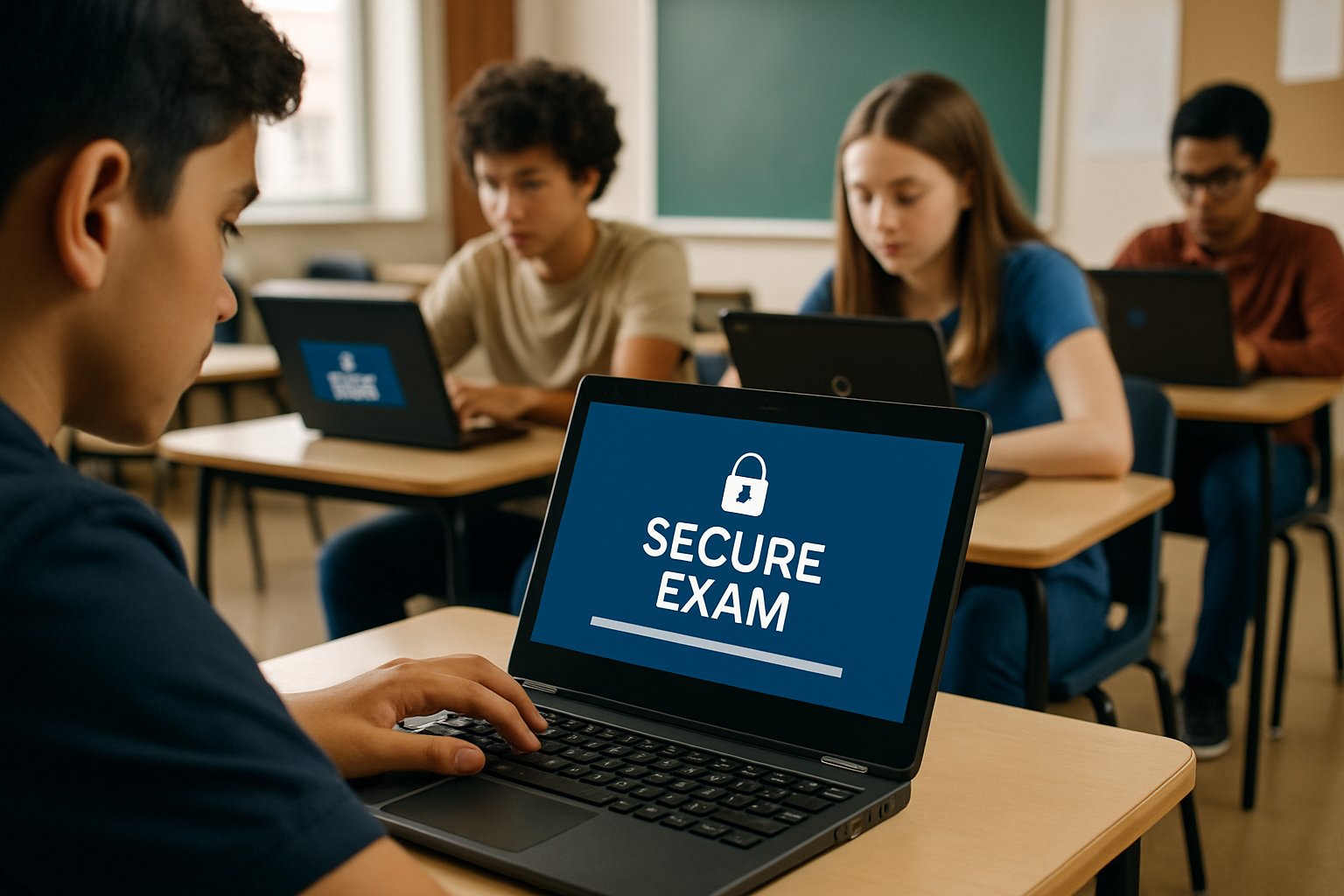
Furthermore, the strongest controls require managed devices. Unmanaged student hardware often slips past restrictions. Consequently, administrators must map threat models to each operating system. The next sections break down strengths and gaps.
- lockdown browser for Mac delivers deep OS access and blocks external applications under macOS Sonoma.
- lockdown browser for Chromebook activates in kiosk mode and enforces single-app use on managed devices.
- Chrome OS lockdown browser extensions add optional webcam monitoring through Respondus Monitor or similar tools.
- lockdown browser installation requirements include minimum OS versions, administrator rights, and stable network connections.
- lockdown browser LMS compatibility depends on APIs from Canvas, Moodle, Blackboard, and other platforms.
In short, compatibility starts with the operating system and management layer. Next, we explore Mac strengths in depth.
Mac Lockdown Strengths Explained
Macs run native clients that integrate tightly with system processes. Therefore, a lockdown browser for Mac can disable screenshots, virtual machines, and external displays during testing.
Respondus, Examplify, and Safe Exam Browser push frequent macOS updates. Moreover, kernel-level hooks detect prohibited shortcuts instantly. Independent penetration tests show high success blocking casual software cheats.
However, physical devices still circumvent controls. USB keystroke injectors and covert smartphones remain effective. Consequently, institutions pair software with live or AI proctoring for stronger assurance.
Importantly, browser lockdown software compatibility holds steady across recent macOS versions because Apple maintains stable security APIs. Administrators should still enforce latest client builds to patch exploits.
- Verify lockdown browser installation requirements before each term.
- Push automatic updates through MDM profiles.
- Run pilot exams to test assistive-technology conflicts.
- Collect feedback and adjust accessibility settings.
Mac devices offer robust in-app restrictions and predictable update cycles. Nevertheless, hardware cheats force layered defenses, which we address next for Chromebooks.
Chromebook Challenges And Fixes
Chromebooks dominate K-12 fleets, yet securing them is harder. A lockdown browser for Chromebook often runs as a managed kiosk app.
However, students can unenroll devices using community exploits like SH1MMER if firmware remains outdated. Consequently, IT teams must enforce enterprise enrollment and firmware updates.
Chrome OS lockdown browser solutions now ship as progressive web apps because Google deprecates classic kiosk apps. This shift simplifies deployment but increases reliance on stable internet.
Moreover, state programs such as CAASPP mandate current secure-browser versions. Institutions should schedule nightly policy pushes and audit device posture before exam windows.
- Pro: Rapid boot times minimise setup stress.
- Pro: Google Admin console scales across thousands of laptops.
- Con: Unmanaged units bypass restrictions easily.
- Con: Network outages break the PWA session.
Despite challenges, browser lockdown software compatibility remains possible on Chromebook fleets when policies stay active and firmware stays patched.
Chromebook security depends on management status and OS version coherence. Up next, we cover deployment steps that bridge both platforms.
Deployment Best Practice Steps
Successful rollouts follow a repeatable checklist. Firstly, document all lockdown browser installation requirements for each platform.
Secondly, create configuration baselines inside your mobile-device-management or Google Admin console. Moreover, align these baselines with accessibility accommodations.
Thirdly, test every update during a low-stakes quiz. Doing so verifies browser lockdown software compatibility before high-stakes sessions.
Finally, train instructors and learners. Provide quick reference guides that explain how a lockdown browser for Mac differs from a lockdown browser for Chromebook.
Additionally, integrate multi-camera or room-scan protocols when stakes warrant. Physical proctoring complements software and answers privacy critics through transparent review processes.
A disciplined deployment sequence reduces last-minute surprises. Next, we evaluate how learning platforms impact the equation.
LMS Integration Considerations Guide
Assessment platforms embed their own checks. Nevertheless, lockdown browser LMS compatibility can vary across Canvas, Moodle, Blackboard, and D2L.
Consequently, administrators should run vendor-supplied diagnostic exams inside each course shell. These tests log API calls and catch permission errors early.
A browser lockdown software compatibility matrix simplifies support calls. Maintain one sheet that lists minimum versions for every plugin and extension.
Moreover, some LMSs restrict external pop-ups. Ensure the Chrome OS lockdown browser PWA launches inside the allowed iframe.
Finally, if you require remote ID verification, confirm the lockdown browser for Chromebook passes webcam permission prompts, and that the lockdown browser for Mac supports Touch ID.
Proper LMS alignment prevents exam interruptions and grade disputes. Finally, we look ahead at emerging trends driving continuous change.
Future Trends And Recommendations
Platform owners evolve security APIs yearly. Therefore, institutions must treat lockdown strategies as living programs rather than one-off projects.
Experts predict more biometric signals, such as keystroke dynamics, will integrate directly into Chrome OS lockdown browser offerings.
Meanwhile, open-standard attestations may allow automated proof of device enrollment, strengthening browser lockdown software compatibility for remote candidates.
Nevertheless, privacy expectations will keep rising. Transparent data policies and appeal processes remain essential alongside technology.
Accordingly, we recommend six concrete actions for the next fiscal year.
- Audit firmware against unenrollment exploits quarterly.
- Retire unsupported SEB or Respondus builds within 30 days.
- Publish updated lockdown browser LMS compatibility charts every semester.
- Require dual-camera proctoring for capstone exams.
- Conduct surprise drills to test staff readiness.
- Share lessons learned with peer institutions.
Continuous improvement keeps defences ahead of attackers. The conclusion summarises why layered proctoring with trusted partners matters.
Effective exam integrity requires technology, policy, and people working together. This article showed how macOS and ChromeOS handle browser lockdown software compatibility differently, yet both platforms succeed when deployments follow best practice.
Why Proctor365? Our AI-powered engine pairs advanced identity verification with scalable monitoring across any device. Furthermore, live analysts review AI flags in real time, reducing false positives. Global universities trust Proctor365 to protect certifications and corporate learning.
Therefore, strengthen your next assessment with Proctor365. Visit Proctor365.ai to schedule a demo and elevate exam integrity today.
Frequently Asked Questions
- How do lockdown browsers for Mac and Chromebooks differ in functionality?
Lockdown browsers on Mac use native applications for deep OS integration, blocking unauthorized actions, while Chromebooks rely on kiosk mode or progressive web apps. Proctor365 enhances security with AI-driven identity verification and real-time fraud prevention. - Why is proper deployment of browser lockdown software crucial?
Proper deployment—including firmware updates, MDM configurations, and pilot tests—ensures compatibility across devices. Proctor365 complements these measures with scalable monitoring and advanced proctoring, supporting overall exam integrity and preventing academic fraud. - How does AI proctoring enhance exam security in online assessments?
AI proctoring continuously analyzes exam behavior, flags suspicious activities, and verifies candidate identity. Proctor365’s AI engine works alongside browser lockdown software to reduce false positives and ensure robust fraud prevention during high-stakes assessments. - How does LMS integration support successful exam administration?
Integrating lockdown browsers with LMS platforms like Canvas, Blackboard, and Moodle streamlines exam delivery and monitoring. Proctor365’s real-time analytics and compatibility with multiple systems ensure seamless, secure exam environments.